How to Set Up a Monitor Arm: A Singapore Guide
Get your screen to eye level and an arm's length away, mount the arm to your desk, and keep the top clear. The ergonomic figures, and how it fits an HDB desk.
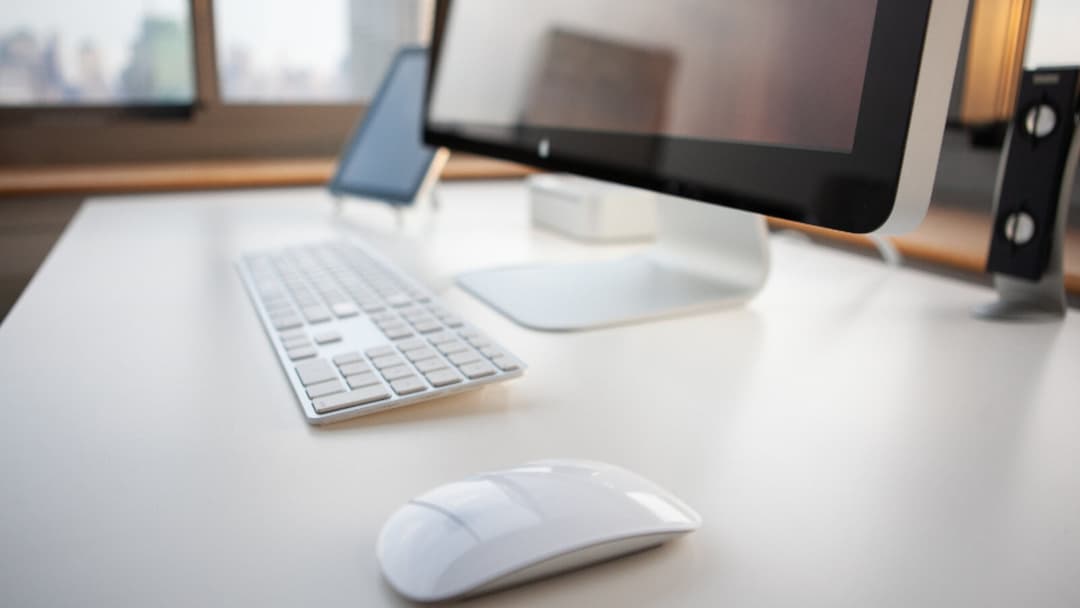
A laptop on a flat desk sits too low. You read with your chin down and your shoulders creeping forward, and by the evening your neck knows it. A separate screen on its own feet is better, but it still only moves up and down a few notches, and it eats the depth of the desk behind it. An arm fixes both problems at once. It floats the screen off the surface, holds it at the height your body actually wants, and gives you back the space the base used to occupy.

The hard part is not bolting the arm on. It is knowing where the screen should end up, and then getting it there without a dozen rounds of trial and error. This guide gives you the target first, then the mounting, then the fine adjustment, and finally how all of it sits on a small desk at home.
The three numbers that matter
Before you touch a bracket, picture where the screen is going. Three figures settle it.
The United States Occupational Safety and Health Administration says the top of the monitor should be at or slightly below eye level, with the centre of the screen about 15 to 20 degrees below your horizontal line of sight. The same source puts the preferred viewing distance between 20 and 40 inches, which is 50 to 100 cm, from your eye to the front of the screen. Canada's Centre for Occupational Health and Safety calls an arm's length a good estimate of that distance, and suggests placing the monitor about 15 degrees, or a little lower, below the horizontal line.
Read together, those come down to a plain picture. Your eyes land just under the top edge of the screen, you gaze gently down at the middle, and the glass sits about as far away as your outstretched hand. An arm exists to park the screen in that spot and keep it there.
Clamp or grommet: fixing the arm to your desk
Most arms attach in one of two ways. A C-clamp grips the back edge of the desk like a strong bulldog clip, with a pad above the top and a plate screwing up from below. The other way is a grommet mount, which uses the ringed hole in the top that cables pass through: a bolt drops down that hole and tightens from underneath. The clamp is quicker and leaves the top whole; the grommet mount is tidier and sits flush, but it needs a hole or a spare cable port in the right place.
Two things decide which works. First, the edge has to be clear behind the screen, with nothing in the way of the plate underneath, so a desk with a back rail or a deep drawer can rule a clamp out. Second, the top has to be solid where the clamp bites. On the Vival Desk that edge is a walnut-look laminate (a printed surface layer bonded onto the board) over a core of MDF, which is medium-density fibreboard, a board pressed from wood fibre. Check the desk-thickness range printed on the arm's box against your top before you buy, and keep the clamp a few centimetres in from the corner and hand-tight rather than forced.
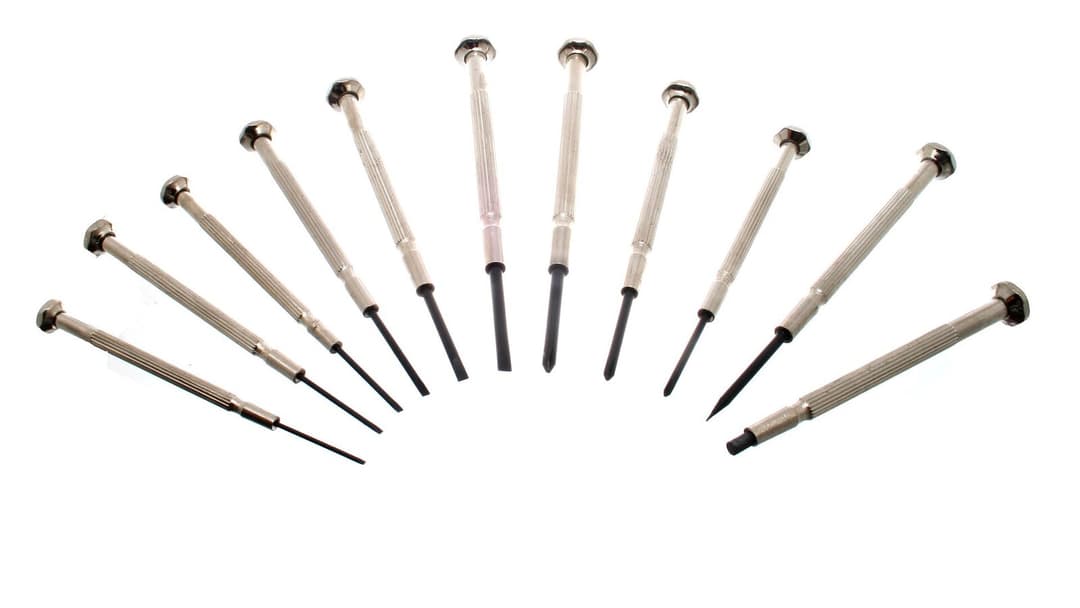

The screen itself bolts to the arm's plate through four holes on its back, the standard mount almost every monitor shares. Most arms arrive with the one hex key you need, so a drawer of screwdrivers is rarely required, but it helps to have a small one on hand for the clamp plate. Fit the plate to the screen first, on a soft surface, then clip the whole thing onto the mounted arm. One person can manage a single screen; a second pair of hands makes a heavy one safer.
Setting height, distance and tilt
Set your chair before the screen. Get your feet flat, your forearms level with the desk, and your back supported, because the right screen height depends on where your eyes sit once you are settled. If you are still working that out, our standing desk height guide and the desk-height calculator walk through it.
Now bring the screen to you. Loosen the arm's tension, raise it until the top edge meets eye level, and let it fall slightly from there, which matches OSHA's at-or-slightly-below mark. Pull it in or push it back until it sits about an arm's length away. Then tilt. OSHA suggests tilting the screen back no more than about 10 to 20 degrees so you look squarely at the glass rather than skimming it.
One note on glasses. CCOHS points out that people who wear bifocals or progressive lenses may find the top of the screen more comfortable a little lower, because the reading part of the lens sits at the bottom. Treat the first setting as a draft. Live with it for a few days and nudge it before you lock the tension down.
One screen or two
A single screen goes dead ahead, its middle lined up with your nose, so you are not turning to one side all day. For two screens of the same size that you use evenly, straighten them into a shallow curve and put the seam between them in front of you. If one screen is your main and the other a sidekick, square the main one up and angle the second in toward you.

Width is the quiet limit here, so measure before you buy a dual arm. One asks for enough clear top to swing both screens without either hanging off the edge. Our FAQ notes the Vival Desk top is 120 by 60 cm and fits a typical dual-monitor setup, which is the room two mid-size screens want on one surface. Depth matters as much, since the arm needs to push the screens far enough back for that arm's-length gap.
Cables and a clear desktop
The real luxury of an arm is the empty desk under the screen. A stand plants a foot in the middle of your working depth; an arm clears it, so your keyboard slides back, your notebook has somewhere to live, and the surface reads as calm rather than crowded. In a small room that recovered space is the whole point.
Keep the cables from spoiling it. Most arms have a channel or clips running down the upright, so route the screen's power and video leads through those, gather the slack behind the desk, and leave just enough play for the arm to move through its full reach. If you also run a laptop or a dock, think about where those sit before you tighten anything, so the whole bundle drops down one tidy path. A monitor arm and a few desk accessories do more for a cramped setup together than either does alone.
Fitting it to a Vival Desk in an HDB room
An arm and a sit-stand desk suit each other. When the desk rises, the screen rises with it, so the eye-level and arm's-length numbers above hold whether you sit or stand, with no second monitor to re-rig each time. The Vival Desk travels from 72 to 120 cm on its dual motors, and its three one-touch presets bring the whole arrangement back to the exact height you set.
The desk also gives the arm something sound to hold. Its top is 120 by 60 cm, that walnut-look laminate over an engineered-wood core, and our FAQ rates the desk to carry up to 100 kg, which comfortably covers a screen and the arm that swings it. For a bedroom corner or a study nook, that is a single surface that takes the arm, clears its own top, and still has room for the rest of your work. S$289 with code VIVAL60 (list S$349)
Set the three numbers once, mount the arm to a top that can hold it, and the daily hunt for a comfortable screen is over.